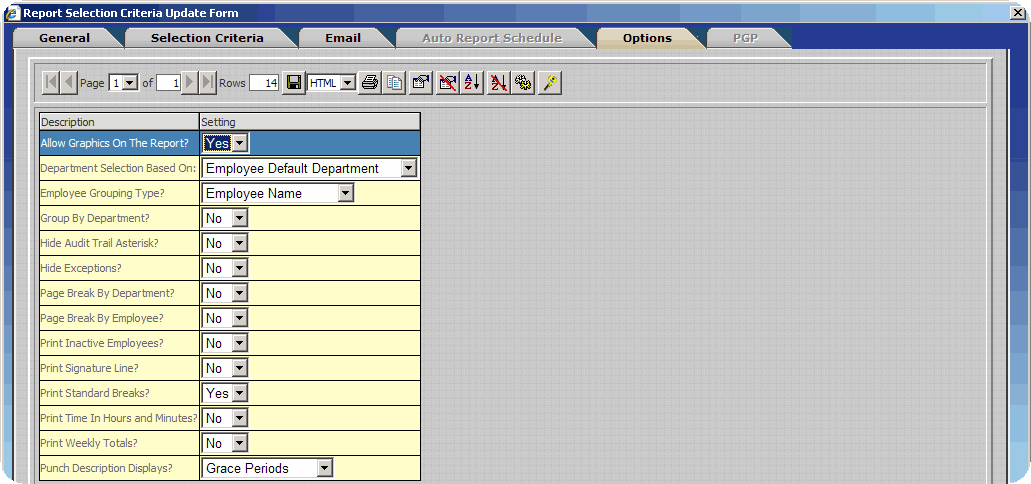
A list of additional settings are available on the Options Tab. Select Yes or No using the drop down boxes in order to enable or disable the option. Some options are specific to certain reports and will not be available for all reports.
Allow Graphics On The Report – Enables or disables the display of graphics on the report.
Department Selection Based On - Choose how tagging departments on the Selection Criteria Tab effects the information displayed on the report. If this option is set to Employee Default Department employees will be shown with Default Departments that match departments indicated by the Selection Criteria. If this option is set to Employee Worked in Department Employees who have activity in the departments indicated by the Selection Criteria in the chosen date range will be displayed on the report.
Employee Default Department - Selecting this option all hours worked by an employee will display under their default department even if they have activity in other departments, all of the activity for all departments will show under that employees default department.
Employee Worked On Department - Selecting this option all hours worked by an employee will display in the department that employee worked in, so you might see that employees name associated with different departments in the report.
Department Selection Filters Activity? - When enabled, Timecard Activity is filtered according to departments tagged on the Department Tab of the Report Selection Criteria Update Form. Timecard records will only be displayed for hours worked in the selected departments. This feature is intended for use in conjunction with the Department Selection Based On 'Employee Worked In Department' option.
Employee Grouping Type - Choose how employees will be ordered on the report. If this option is set to Employee Name employees will be ordered alphabetically by name. If this option is set to Activity Department employees will be listed according to the department they worked in. If this option is set to Employee Department employees will be listed according to the department they are assigned to.
Group By Department – Enabling this option will group all employees in the same department together on the report.
Hide Audit Trail Asterisk - Enabling this option will hide all audit trail asterisks on the report. Audit trail asterisks are displayed by default to indicate punches that have been edited or inserted manually.
Hide Exceptions - Exceptions will not be displayed on the report if this option is enabled.
Page Break By Department – Enabling this option will start a new page for each department.
Page Break By Employee – Enabling this option will start a new page for each employee.
Print Inactive Employees – Enabling this option will print information for inactive employees.
Print Signature Line - A signature line will be displayed at the bottom of the results for each employee if this option is enabled. Generally Page Break by Employee should be enabled when using this feature.
Print Standard Breaks - Disabling this option removes the Break Column from the report.
Print Time in Hours and Minutes - InfiniTime reports activity in hundredths of an hour by default. Setting this option to Yes displays activity totals in hours and minutes.
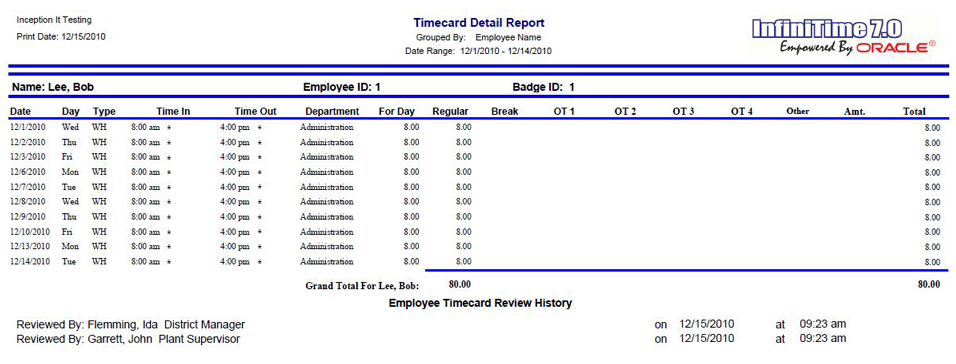
Print Timecard Review History - When enabled, Timecard Review history displays a list of supervisors, including Supervisor Name, Supervisor Position, and Last Review Time, for each employee who have reviewed all of the employees Timecard Records for the selected date range. A supervisor's name will not be listed if all records during the date range are not reviewed by the supervisor. Only the Timecard Review History header will be displayed if there are no supervisors who have reviewed all of an employee's Timecard Records for the selected date range. The Timecard Review History option is available on the following reports:
Timecard Detail
Timecard Detail with Weekly Totals
Timecard With Clock Description
Timecard With Phone Numbers
Example Timecard Detail Report with Timecard Review History:
Print Weekly Totals - Enabling this option adds a subtotal row for each week to report.
Punch Description Displays - Changes the information displayed in the Punch Description column of the report. By default grace periods such as tardy and early are displayed in this area. Additional options are Telephone Number, Nothing, and Clock Description.