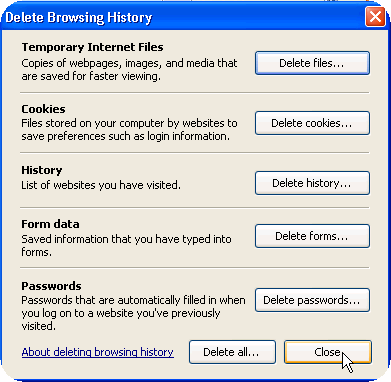
If you should experience script errors please close your InfiniTime 7 software and clear your Temporary Internet Files before contacting Technical Support for assistance. It is not uncommon for temporary internet files to be altered by a third party program such as an anti-spyware or antivirus application. In many cases this can be resolved simply clearing the Temporary Internet Files, which will automatically be recreated after you access the InfiniTime Software.
To Clear Temporary Internet Files within Internet Explorer 7:
Before following the steps below ensure you have closed all open Internet Explorer windows on your machine. InfiniTIme 7 should not be open on your machine when deleting Temporary Internet Files.
1.) Open Internet Explorer 7.
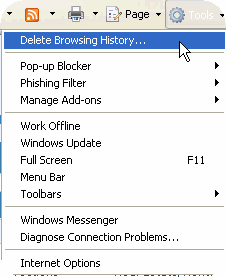
2.) Click on Tools, then Click on Delete Browsing History.
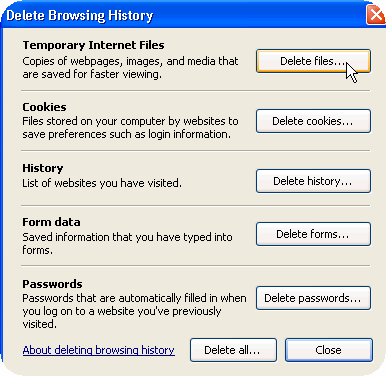
3.) Click on Delete Files.
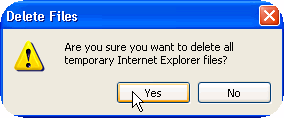
4.) Click on Yes to confirm. All temporary files will be removed from your machine.
5.) Click Close.